
What It Does
Monk lives in your IDE as a native extension. You chat with it, deploy infrastructure, monitor your app, and manage your entire system. You don’t leave your editor.Getting Started
Download Monk for your IDE: https://monk.io/downloads Supported IDEs:- VS Code - Microsoft’s Visual Studio Code
- Cursor - AI-first code editor
- Antigravity - Google’s AI-first editor
- Windsurf - AI-powered IDE
- Other VS Code forks - Any VS Code-compatible editor works
How It Works
Connected Context
Monk sits in your IDE and builds context by connecting three layers:- Your codebase - Source code, dependencies, configuration files
- Runtime state - Running containers, service health, logs, metrics
- Infrastructure - Cloud resources, VMs, databases, networking
- Deploy based on what’s in your code
- Troubleshoot using live runtime data
- Optimize infrastructure based on actual usage
- Give you accurate cost numbers from real resource utilization
Code privacy: Your source code is analyzed to understand deployment needs
but is not stored and not used for training. See
Security for details on how Monk interacts with your
codebase.
Monk Chat Window
Monk has its own dedicated chat interface inside your IDE. What you can do:- Deploy applications:
deploy this project - Check status:
what's the current state? - Scale resources:
add 2 more machines - View costs:
how much am I spending? - Troubleshoot:
why is the API returning 500 errors? - Access logs:
show me API server logs - Manage infrastructure:
migrate to DigitalOcean
- Secure credential prompts - Safe input for cloud provider credentials and API keys
- Runtime status display - Real-time view of your app’s health and resources
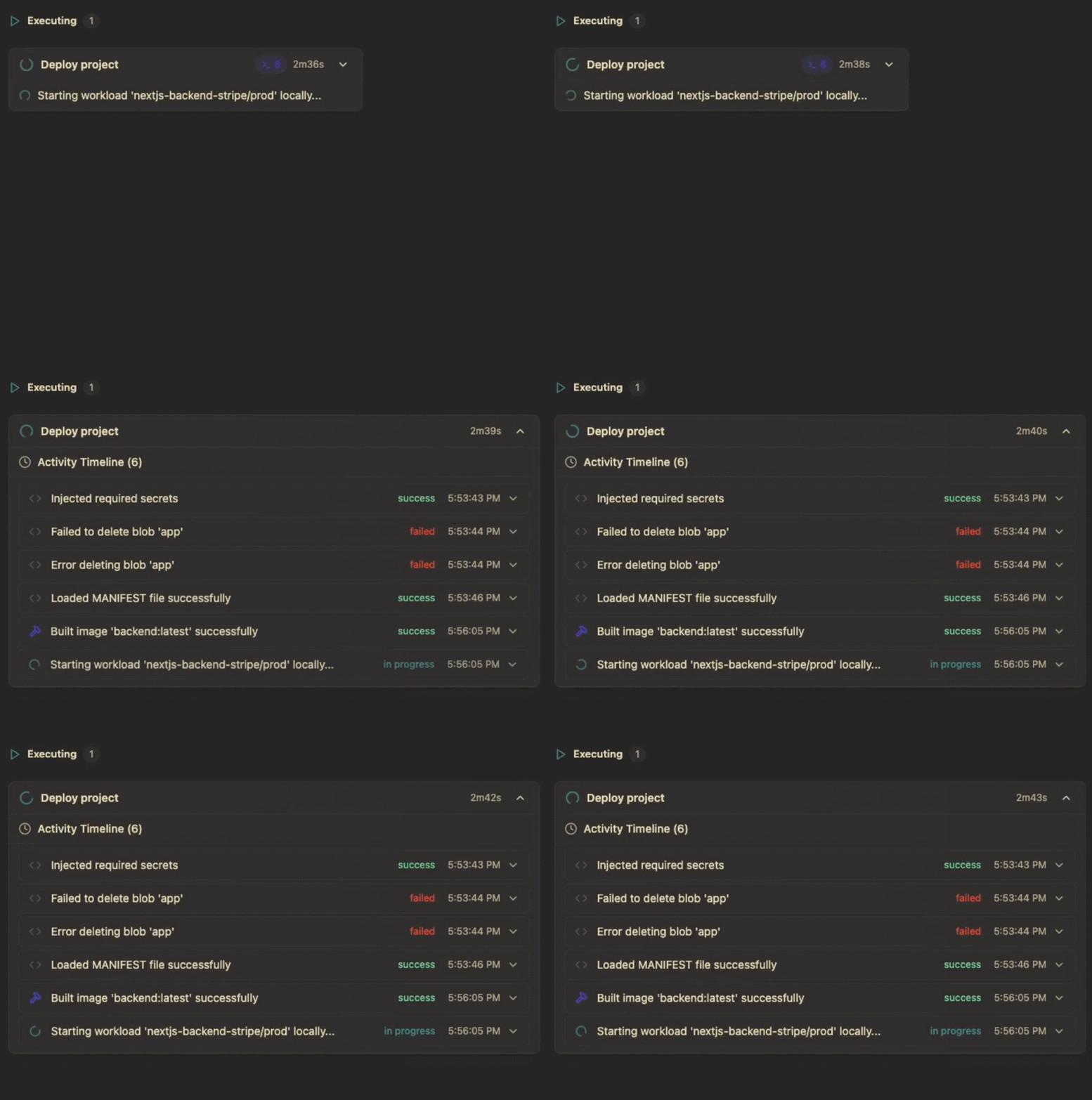
- Progress indicators - Track long-running operations like deployments
- Interactive approvals - Confirm destructive actions before execution
Task Board View
The built-in task board shows you everything Monk is doing. What it shows:- Active tasks - Deployments, scaling operations, migrations in progress
- Completed tasks - History of what Monk has done
- Pending approvals - Actions waiting for your confirmation
- Task status - Animated progress indicators with real-time updates
Terminal Integration
Monk opens standard IDE terminals for direct access. Live logs:Bug Reporting
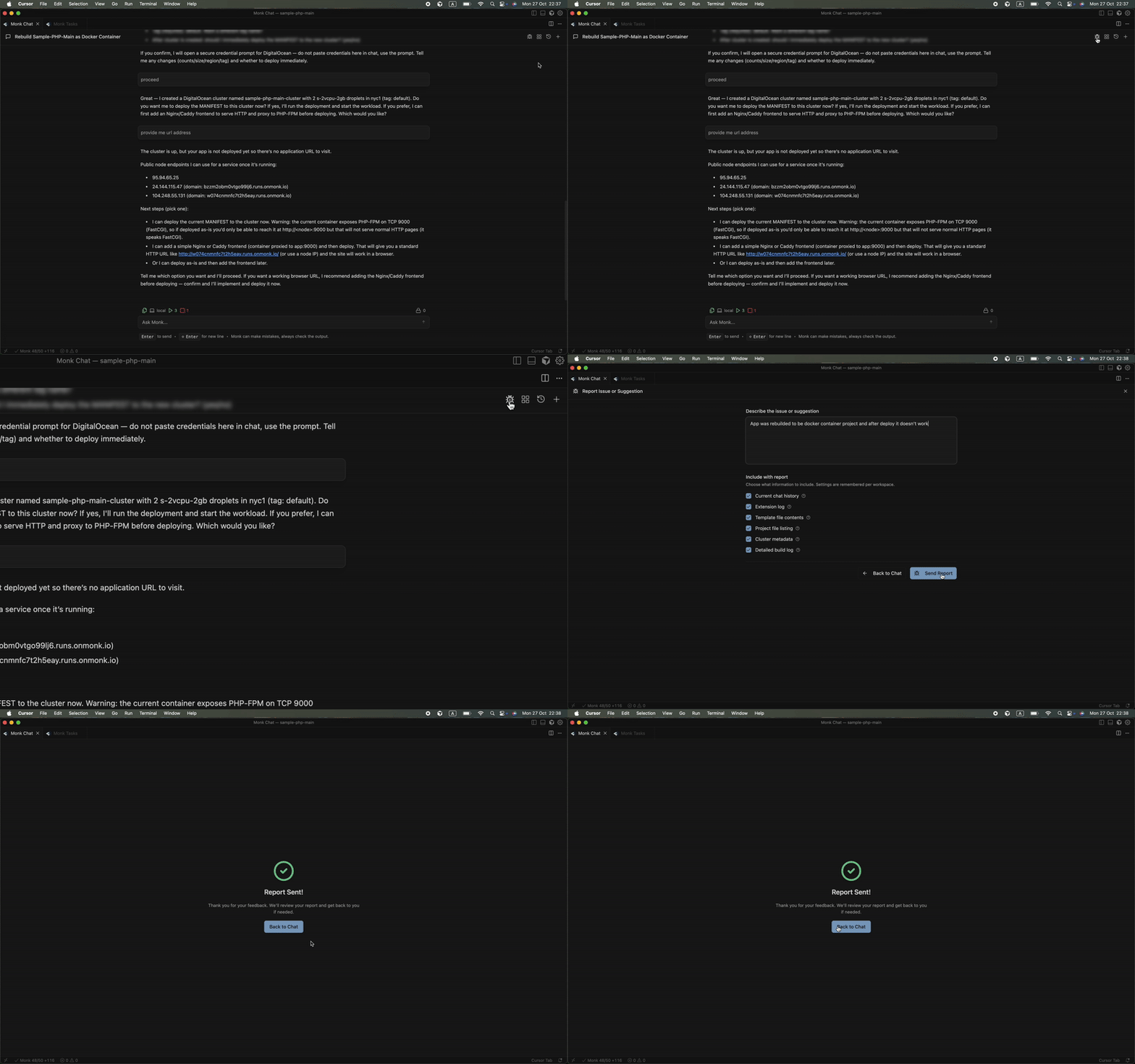
Found an issue? Report it straight from the chat window.- Click the bug icon in the chat interface
- Describe what went wrong
- Monk automatically attaches relevant context (logs, state, recent actions)
- Bug report goes to the Monk team
Interaction with Coding Agents
Monk works directly with coding agents through MCP. If you want to use Monk with GitHub Copilot in VS Code, Claude Code, Gemini, Codex, Cursor, Windsurf, or Antigravity, see:MCP Getting Started
Connect Monk to your coding agent in minutes.
MCP Support
Full details on Monk’s MCP integration.